
How to Securely Activate PGP 2FA ON TorZon
The ultimate guide on how to use TorZon with PGP 2FA encryption. Protect your account from phishing and unauthorized access.
torzon4rzcg5sjjq63xmcn6usud4fhcz7zidpjbuiemtg2wiltv6pyid.onion
Why You Need PGP Two-Factor Authentication
When browsing a TorZon darknet directory or accessing the marketplace, password security alone is insufficient. Activating PGP Two-Factor Authentication (2FA) ensures that even if your password is compromised via a phishing link, your account remains impenetrable. This guide covers the essential software and steps required to secure your login.
Step 1: Download Encryption Software
Before you can generate keys, you need a PGP management tool. Depending on your operating system, download the appropriate software below. These tools are generally free and open-source.
Windows Users
Gpg4win is the industry standard. It includes the “Kleopatra” interface, which makes key management easy.
macOS Users
GPG Suite (GPGTools) provides a robust key chain manager. Note: The interface differs slightly from Kleopatra.
Step 2: Creating Your Key Pair
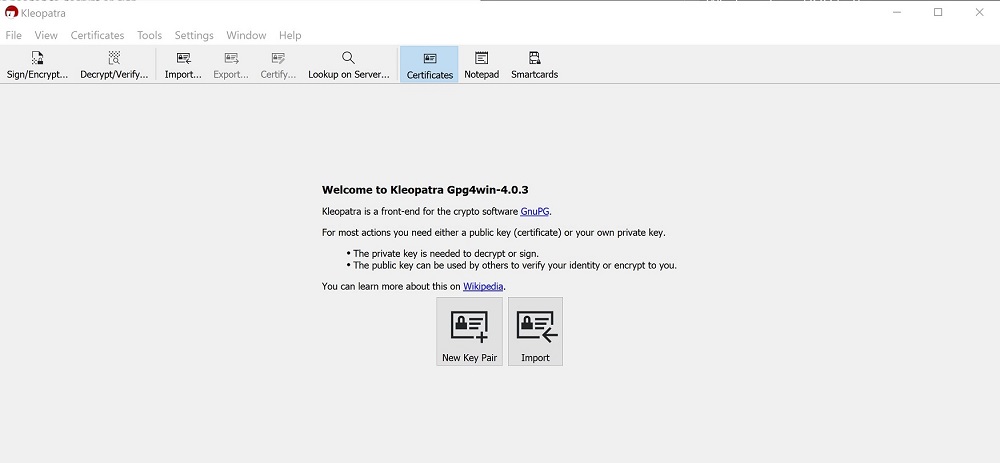
Once you have installed Kleopatra (via Gpg4win), follow these steps to generate your unique identity:
- Open Kleopatra. If this is your first time, the screen will be empty.
- Click on “File” > “New OpenPGP Key Pair”.
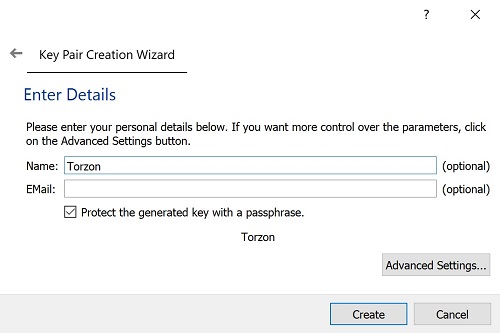
- Enter a Username (this does not need to be your real name) and an Email (can be fake).
- Important: Set a strong Passphrase. You will need this password every time you sign or decrypt a message.
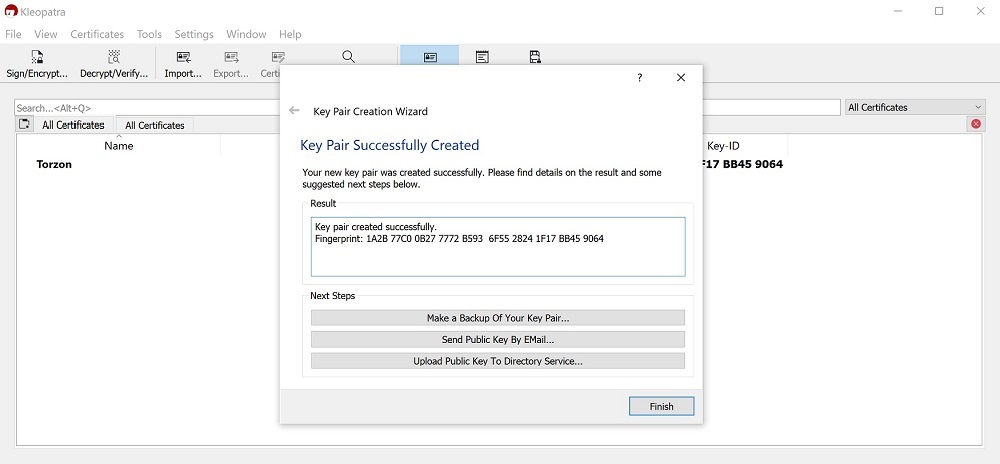
- Click “Create”. Your key will now appear in the certificate list.
Step 3: Exporting Your Public Key
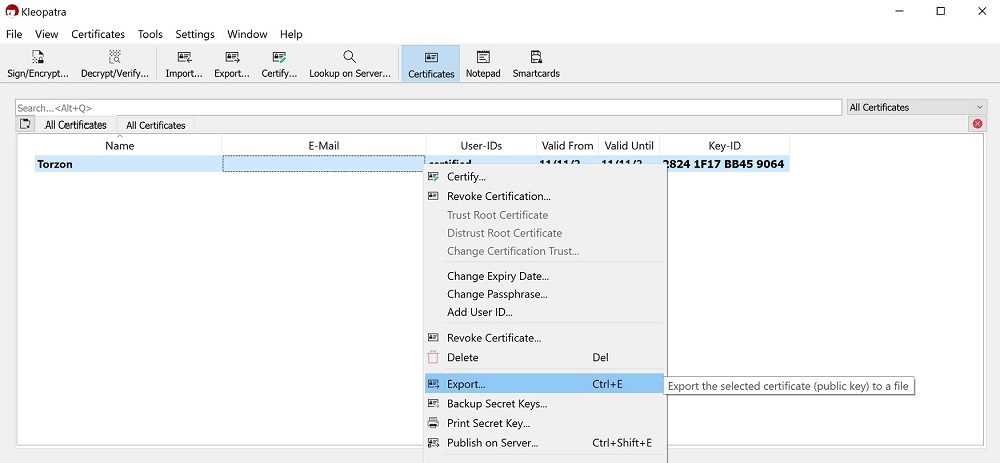
To let TorZon know who you are, you must share your Public Key (never share your Private Key).
Right-click your new entry in Kleopatra, select Export, and save it as a text file, or simply open it in a text editor like Notepad. You will see a block of text starting with -----BEGIN PGP PUBLIC KEY BLOCK-----.
Step 4: Activating 2FA on TorZon
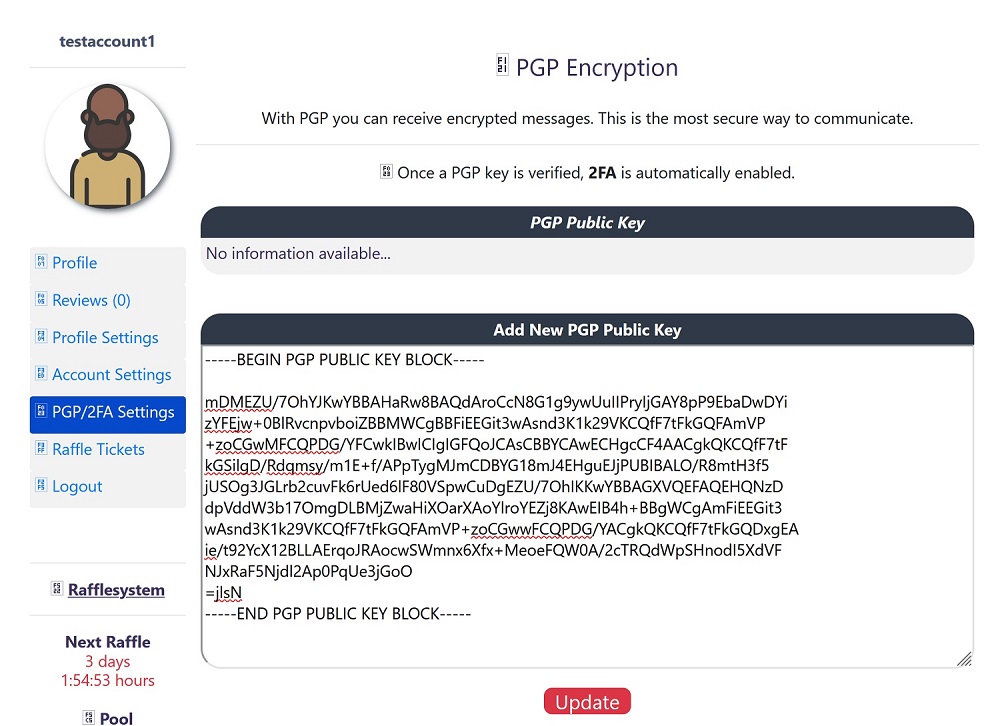
Now that you have your key, follow these instructions to secure your account:
- Log in to TorZon and navigate to Profiles.
- Select “PGP/2FA Settings” from the menu.
- Paste your Public Key into the designated field and click Update.
Troubleshooting: If the PGP field remains empty after updating, wait 5-10 minutes. Newly generated keys sometimes take a moment to register on the server.
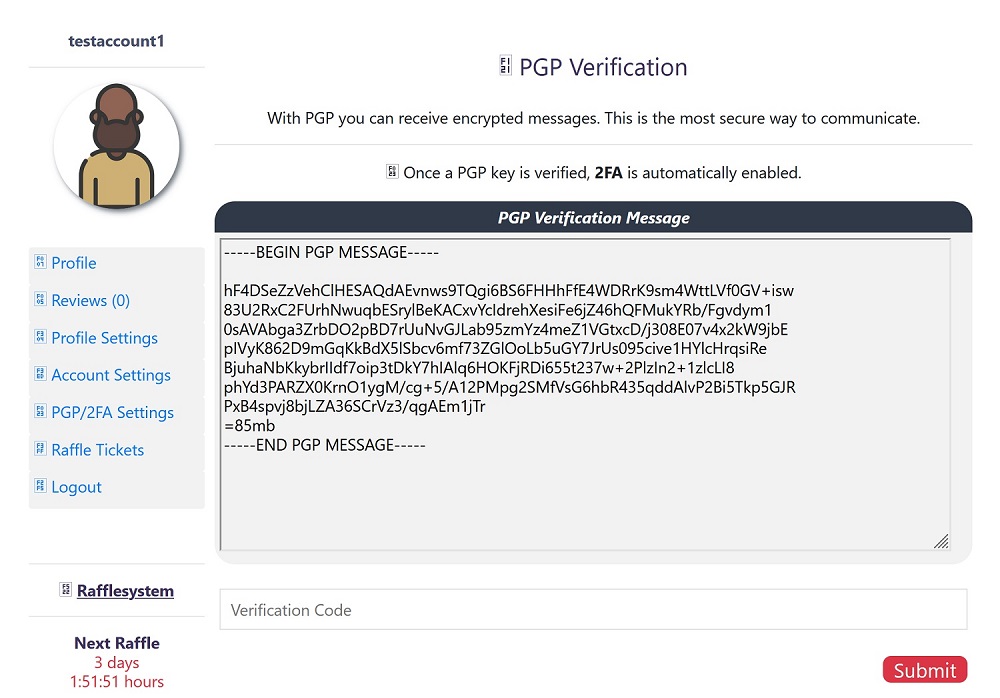
Step 5: Verifying the Connection
After clicking update, the market will present you with an encrypted message block. This is a test to ensure you own the private key associated with the public key you just uploaded.
- Copy the entire encrypted message block from the website.
- Open Kleopatra, click on the Notepad tab, and paste the text.
- Click the “Decrypt / Verify” button.
- Enter your Passphrase when prompted.
- The text will convert into a readable verification code. Copy this code.
- Go back to the TorZon page, paste the code into the “PGP Verification Key” field, and click Submit.
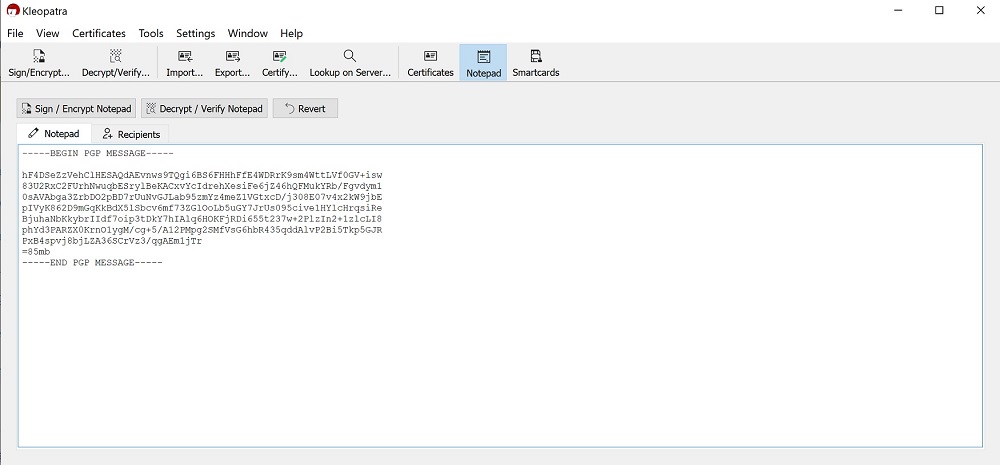
After entering your password, the message should now have been decrypted.
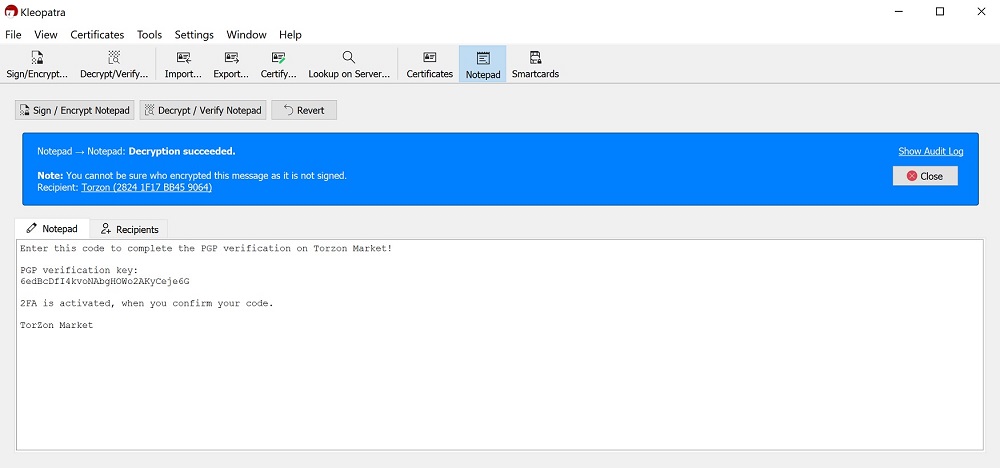
Enter the “PGP Verification Key” in the field and click on Submit.
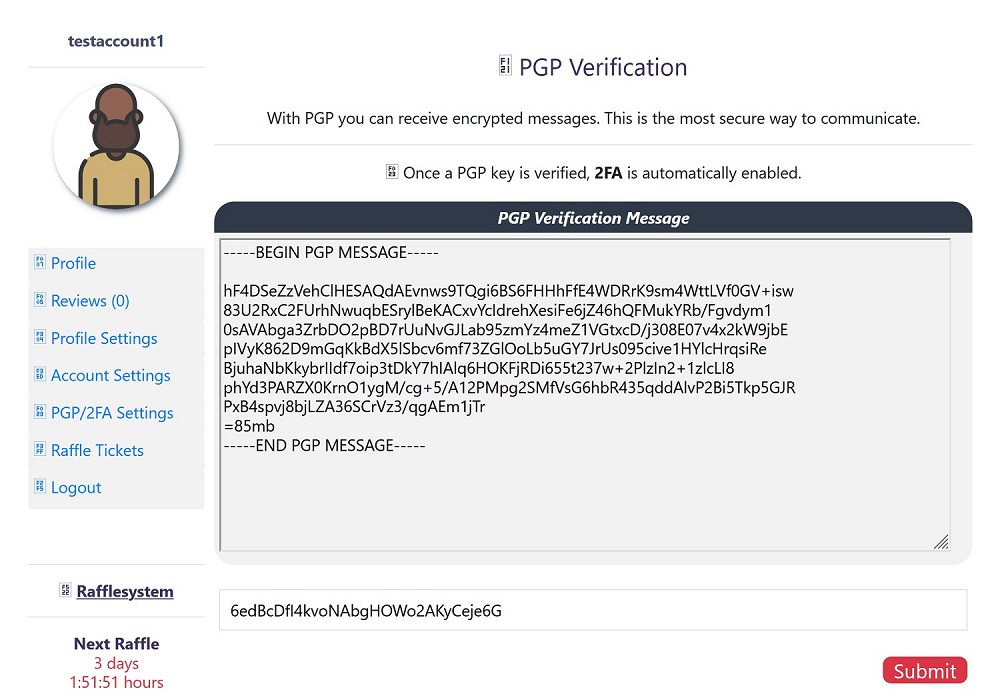
PGP 2FA has been activated
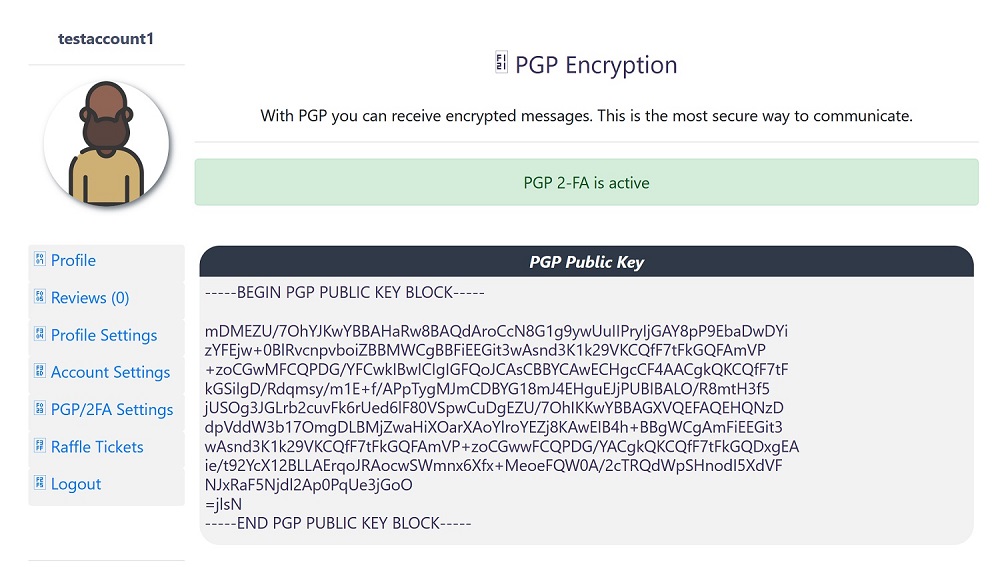
If it appears like this, 2FA has been successfully activated!
Success! If the page confirms the submission, PGP 2FA is now active. You will now be required to decrypt a message every time you log in, ensuring torzon market how to access protocols are strictly followed for your safety.
Quick Links
Safety Tips
Never share your private key. The market only needs your public key.
Verify domains. Before entering your credentials, ensure you are on a verified mirror.
Disclaimer: This content is for educational purposes regarding encryption software. We do not endorse illegal activities.